Using inMotion Studio
Once logged in to app.inmotion.io, go directly to
any screen:
Select Account
The account dropdown (top left) lets you choose which account's data you're viewing. This includes
your own account, plus any other inMotion accounts you've been granted access to.
Each shared account grants you a permission level - see Managing account access for what Consumer, Contributor, and Owner access allows.
Each shared account grants you a permission level - see Managing account access for what Consumer, Contributor, and Owner access allows.
Dashboard
Available onFreeSharedDedicatedSelf-Hosted
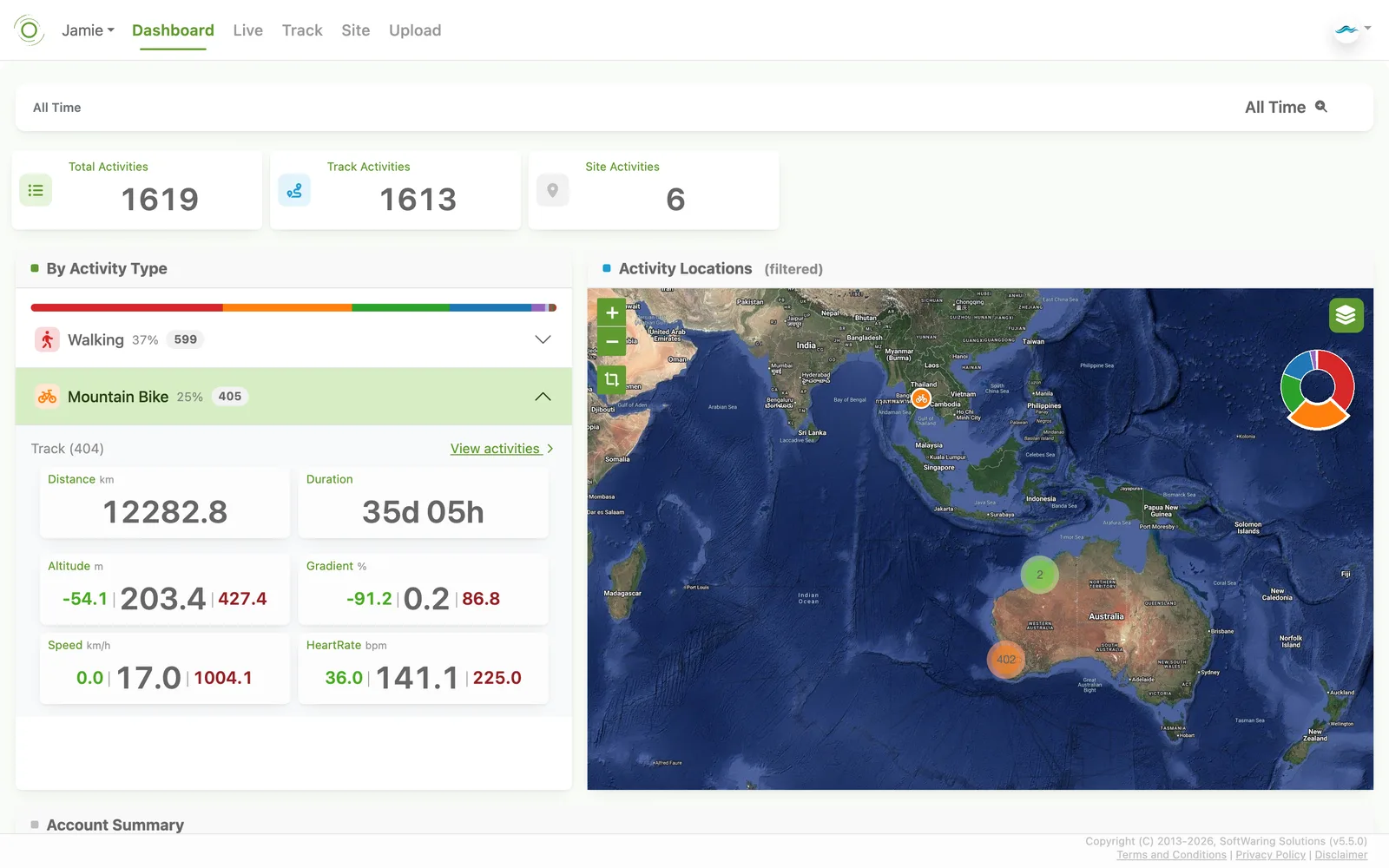
The Dashboard is the first screen you land on after logging in, and summarises everything recorded
against the currently selected account and time period:
- Totals - total, track, and site activity counts for the period.
- By Activity Type - a breakdown of activities by type, each expandable to show that type's aggregate distance, duration, altitude, gradient, speed, and any other recorded variables (e.g. heart rate).
- Activity Locations - a map clustering every activity in the period by location, colour-coded by type.
- Account Summary - user, developer key, API key, and profile counts for the account.
Live Activities
Available onFreeSharedDedicatedSelf-Hosted
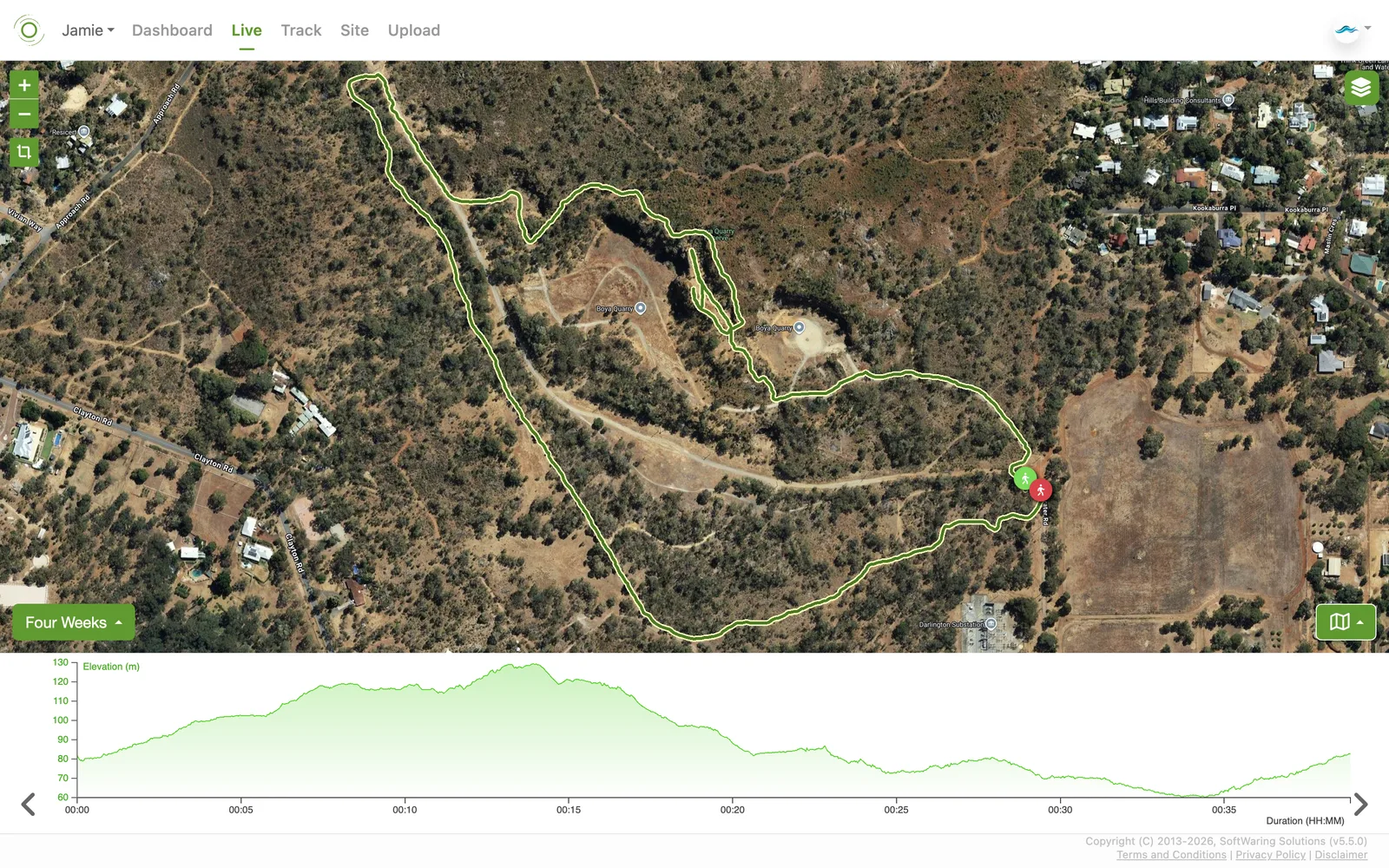
The Live map updates automatically as new data arrives. From here you can:
- Zoom in and out, or fit the map to all current activities.
- Drag or zoom the map manually, and switch the map layer.
- Choose how far back to look for changes (from the last 30 minutes up to the last two weeks).
- Manage which shapes are shown, and rotate through the time-series of key data variables underneath the map.
Explorer
Available onFreeSharedDedicatedSelf-Hosted
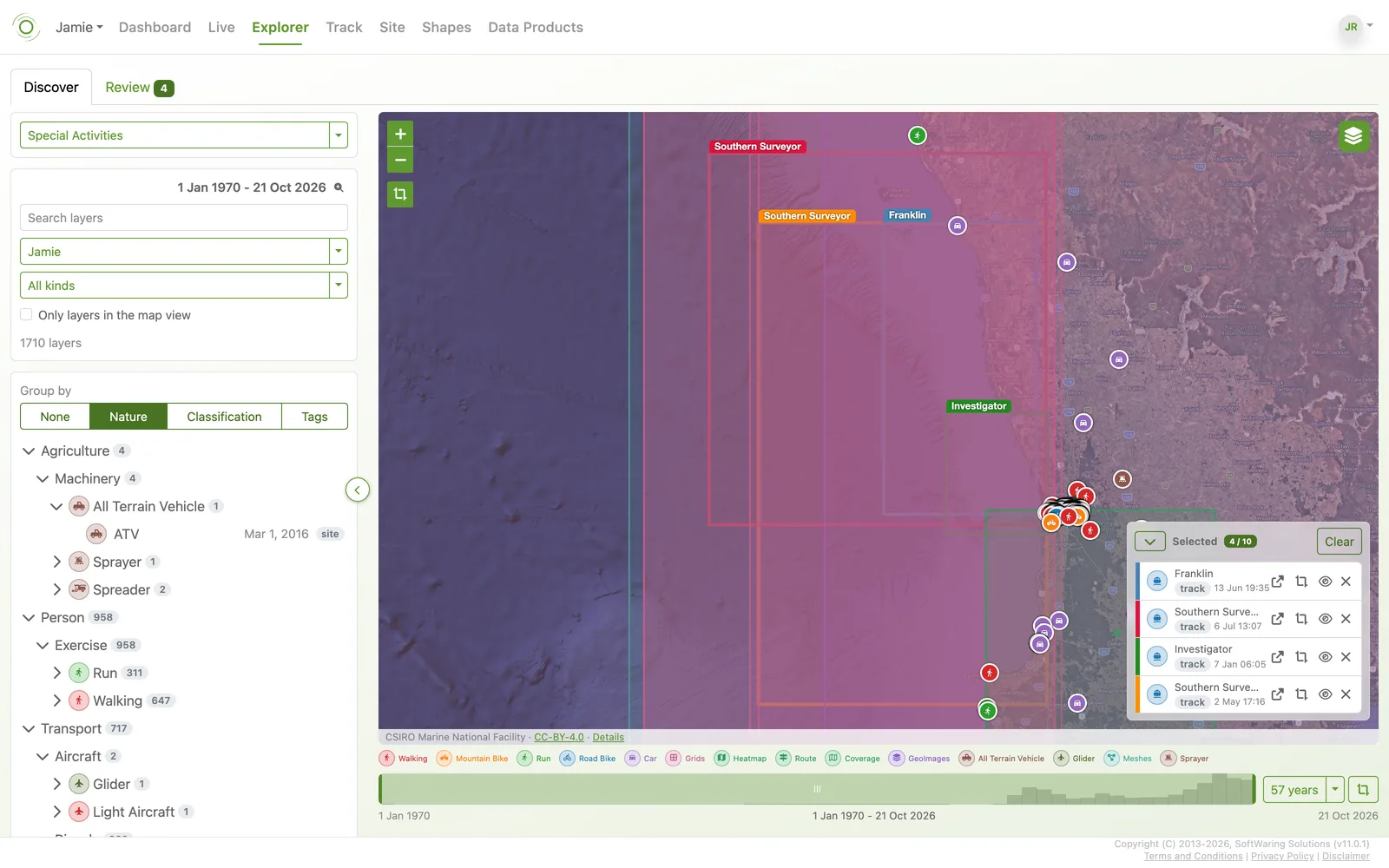
Explorer brings everything in the account onto one map: Tracks, Sites, Shapes, Grids, Meshes and GeoImages. Use the finder on the
left to search, filter by kind or time, and group layers by Nature or Tags, then add the ones you want to the map.
The time bar below the map sets the period shown, and the layers you pick sit in a tray on the map. Open a Folio to start from a saved selection, as in the Discover picture below.
Explorer reads every account you have been given access to, so it is the quickest way to see what was recorded in one place, whoever recorded it. Review shows what is selected: each layer's summary on the left, the tracks drawn on the map coloured by a variable, and a plot of that variable beneath.
Understand a Track Activity
Available onFreeSharedDedicatedSelf-Hosted
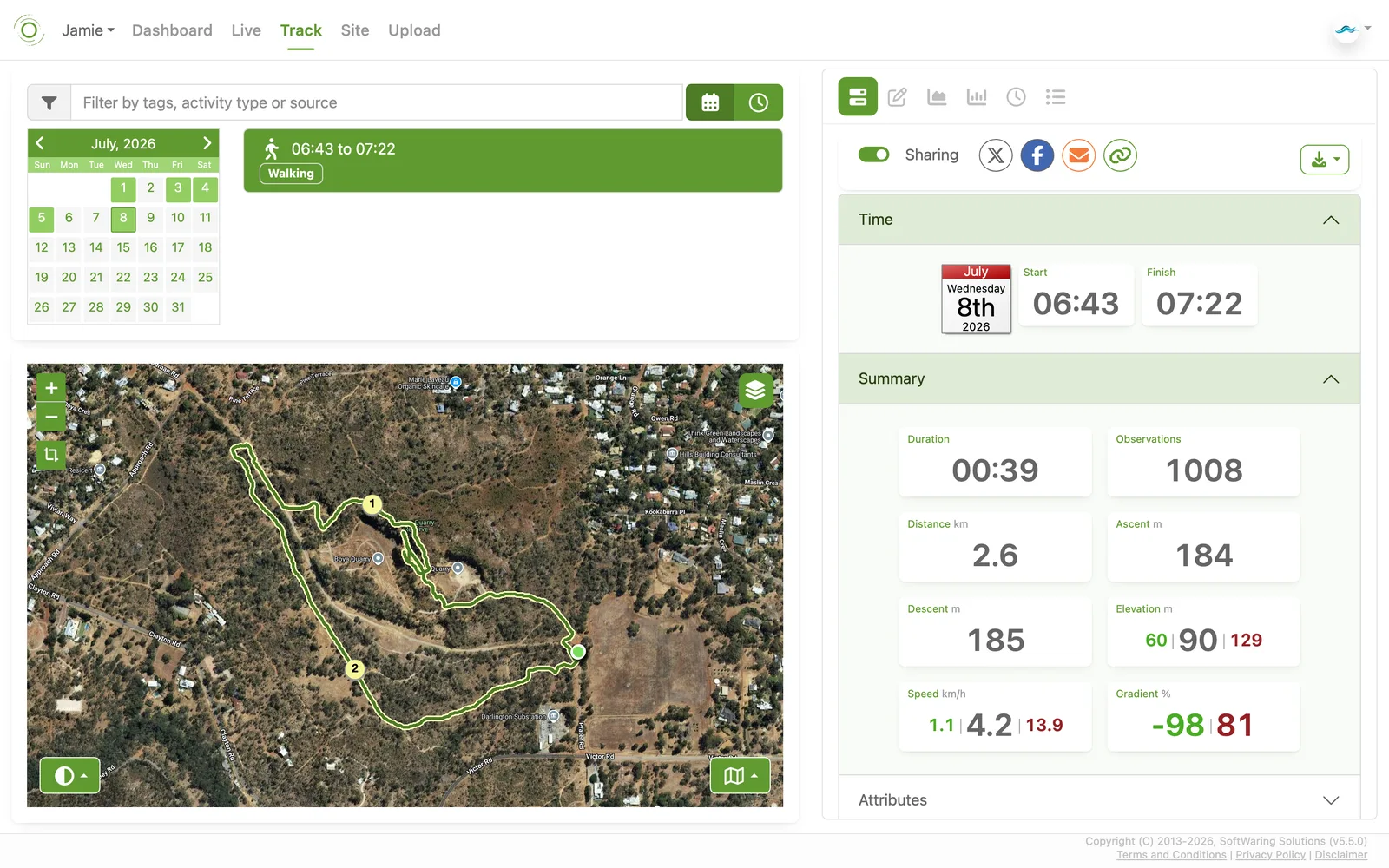
Use the filter field on the left to find an activity, and choose how to browse them: a list, a calendar that highlights
any day with recorded activities, or a Gantt chart that draws each activity as a span on a time axis. Once
selected, the map plots its route and six tabs on the right give you different views of the data:
- Summary - a summary of the activity: start/finish time, duration, observation count, distance, ascent/descent, elevation, speed, and gradient, plus a toggle to share it publicly and a button to download it as CSV or JSON.
- Details - change the name, description, activity type, tags, or comment, and update or delete the activity.
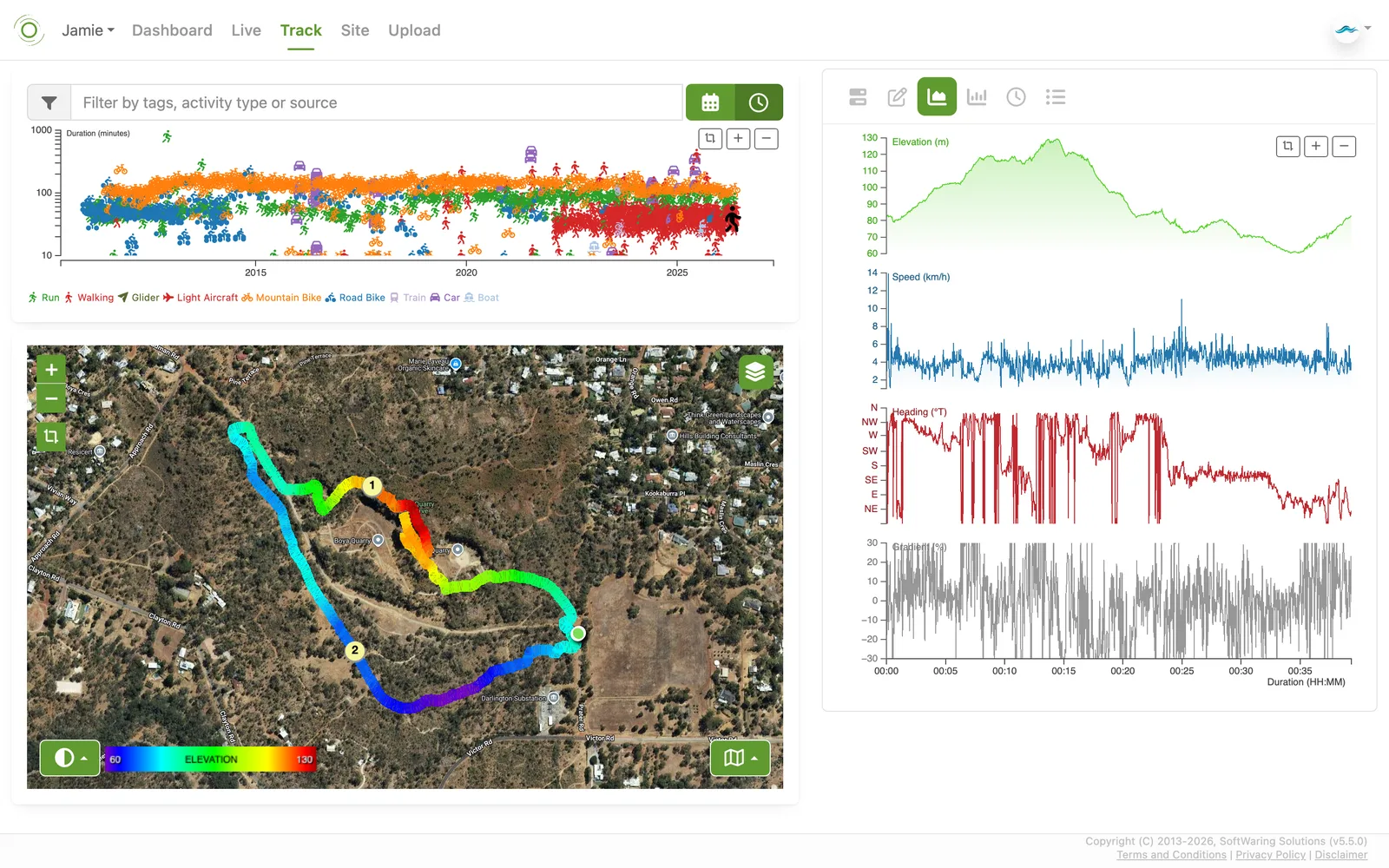
- Time-series - zoomable, synchronised plots of every recorded variable (elevation, speed, heading, gradient, and more) against elapsed time.
- Statistics - a histogram for each variable, showing its distribution over the whole activity.
- Intervals - the same variables broken down into fixed time intervals (e.g. every five minutes), as a table.
- Distance - variables broken down by distance travelled instead of time, also as a table.
Switch the filter panel to Activities mode (instead of the default single-activity view) to compare many activities at once: a scatter plot shows every matching activity's duration across your whole history, colour-coded by activity type, alongside a combined route map coloured by whichever variable you pick (elevation, speed, and so on) so you can spot patterns across many activities at once.
Understand a Site Activity
Available onFreeSharedDedicatedSelf-Hosted
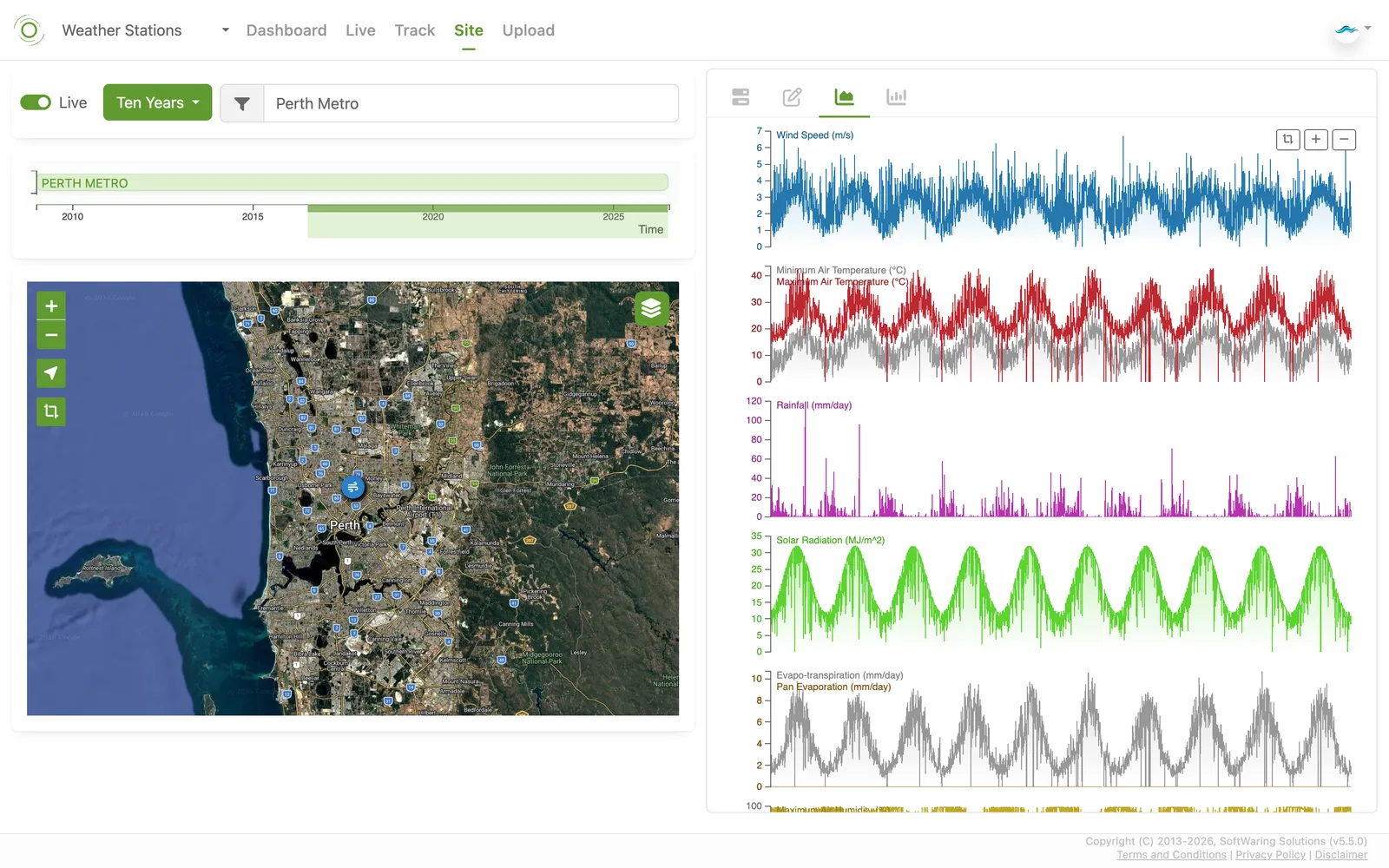
Sites work the same way as tracks, but for a fixed location such as a weather station. Use the filter field to
search by label, type, or source, and choose a duration (from the last week up to your whole history) to set
how far back the timeline below it reaches. That timeline shows every matching site as a horizontal bar you can
click to select, and the map plots each site as a pin. Once a site is selected, switch between the same four
tabs as a track activity - Dashboard, Details, Time-series, and Statistics - to review summary stats, edit
details, and inspect variables over the chosen time window. Turn on Live to keep the view current as new
readings arrive.
Uploading Routes and Coverages
Available onFreeSharedDedicatedSelf-Hosted
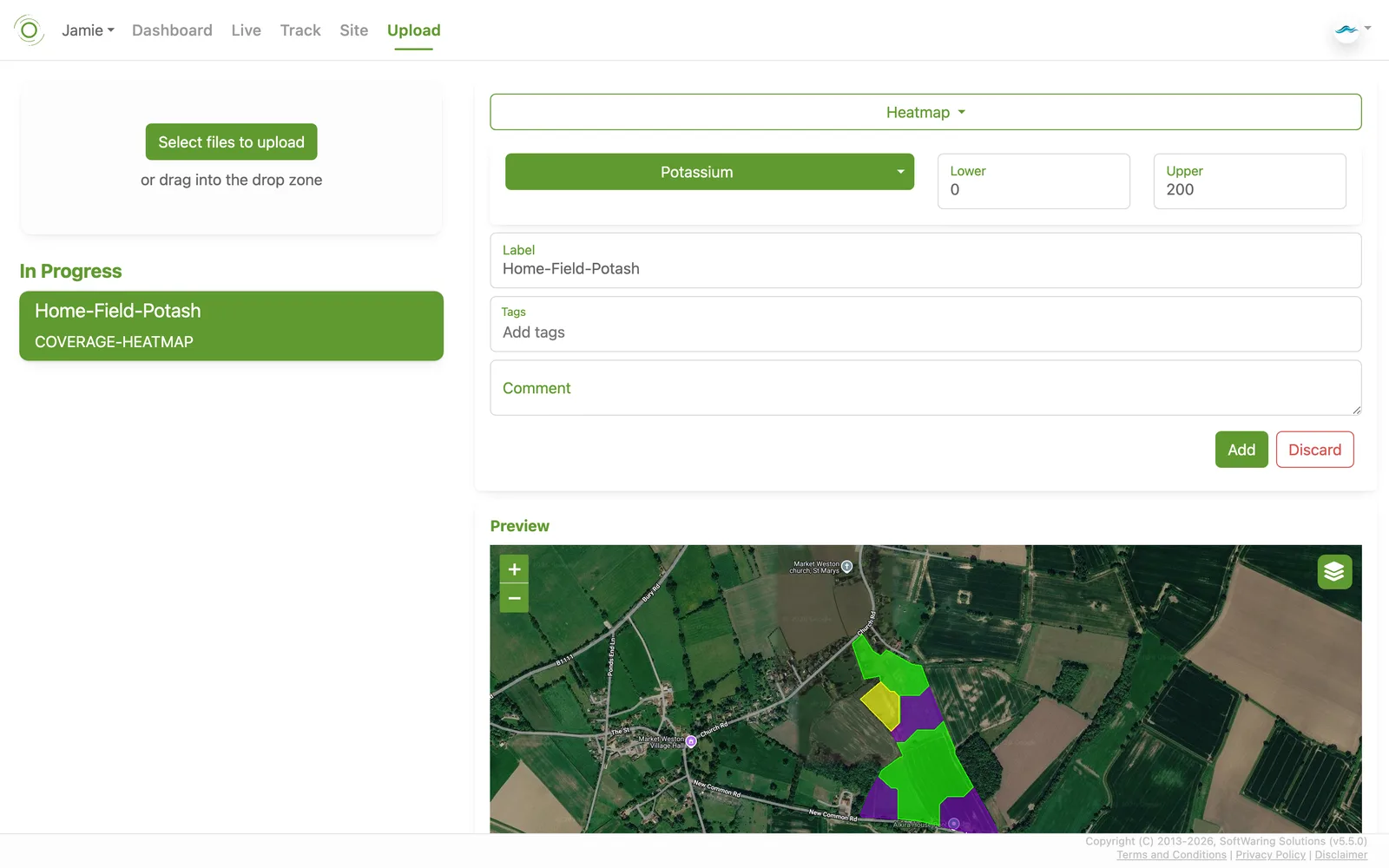
Drag and drop files onto the Upload screen, or select them directly. CSV, GPX, GeoJSON, and Shapefiles are all
supported.
Each upload is shown in a preview pane before it's added to your account. From there you can choose the nature of the file, edit its properties, give it a title and tags, add a comment, and either confirm the import or abort it. You can keep uploading additional files while earlier ones are still processing.
Shapes
Available onFreeSharedDedicatedSelf-Hosted
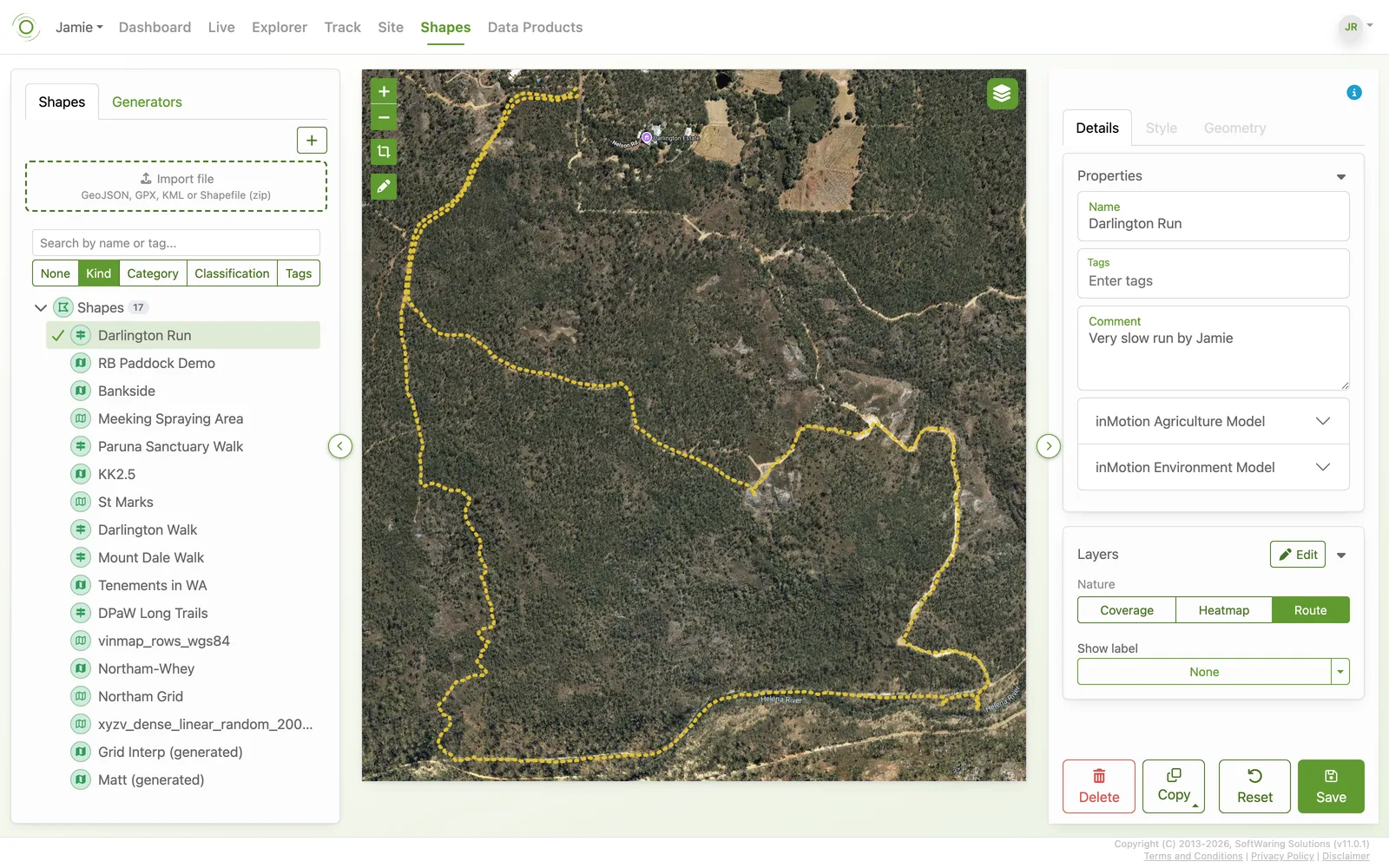
The Shapes screen lets you draw and manage routes and areas directly on the map - paddock boundaries, exclusion zones,
sanctuaries, walks, or anything else worth tracking. Import a GeoJSON, GPX, KML or Shapefile, or draw a new shape with the map
toolbar, then give it a name, tags and a comment. Use the Generators tab to build shapes from rules instead of drawing
them.
The list on the left groups shapes by Kind, Category, Classification or Tags so related shapes are easy to find. The Details tab holds the properties and values you record against each shape, Style controls how it is drawn, and Geometry edits its points.
Data Products
Available onFreeSharedDedicatedSelf-Hosted
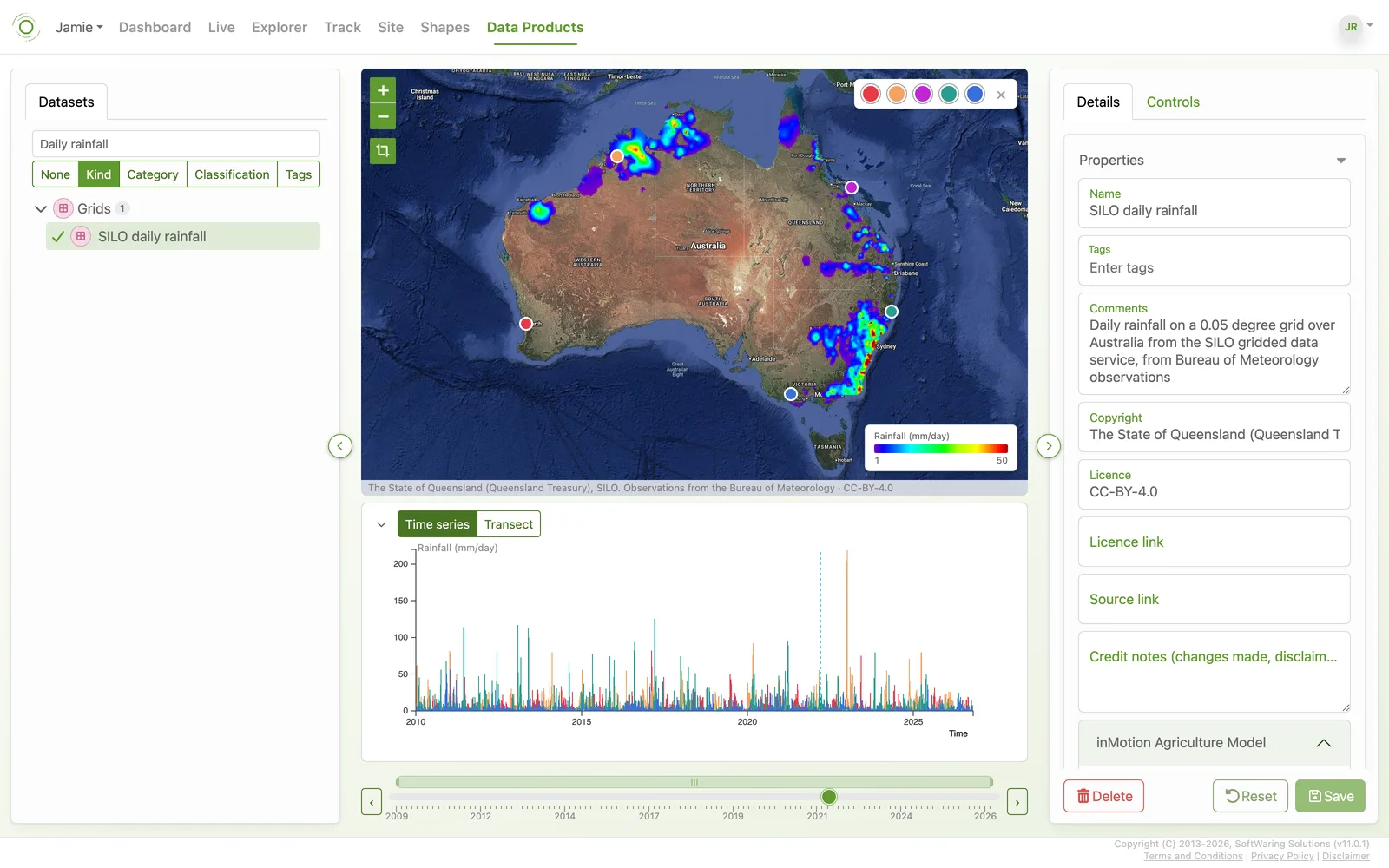
A Data Product is a gridded dataset: a model output, a satellite image or a field of daily rainfall. Choose one from the list and
the map shows it for the time on the slider beneath. The Controls tab sets how it is drawn - the variable and level, the
colours and range, contours and cell edges.
- Time series - click the map to plot how the product changes at that place.
- Transect - draw a route, or choose a Shape, to see the values along it, or the section below it for products with depth.
- Compare - switch on Compare to set the product against a Track or Site that was recorded in the same place and time, such as a weather station or a ship. Choose the account, the activity type, the record and the variable (the closest matching standard data type is picked for you). The plot then shows the record against the product, with a faint line at each time the product has a value, and a dot on the map follows your cursor. With a record that moves, the Transect tab follows its track. Where the product and the record measure the same thing with opposite signs, such as height and depth, use Flip the data product's sign.
Account Settings
Available onFreeSharedDedicatedSelf-Hosted
The dropdown in the top right gives you Quality Control for the
currently selected account, Settings, and Logout. Settings covers your own profile
and sign-in details, account-level access and members, developer/API keys, and each account's custom
master data (Standard Data Types, Device Configs, Activity Types) - see the full
Account Settings guide for every tab.
Quality Control
Available onFreeSharedDedicatedSelf-Hosted
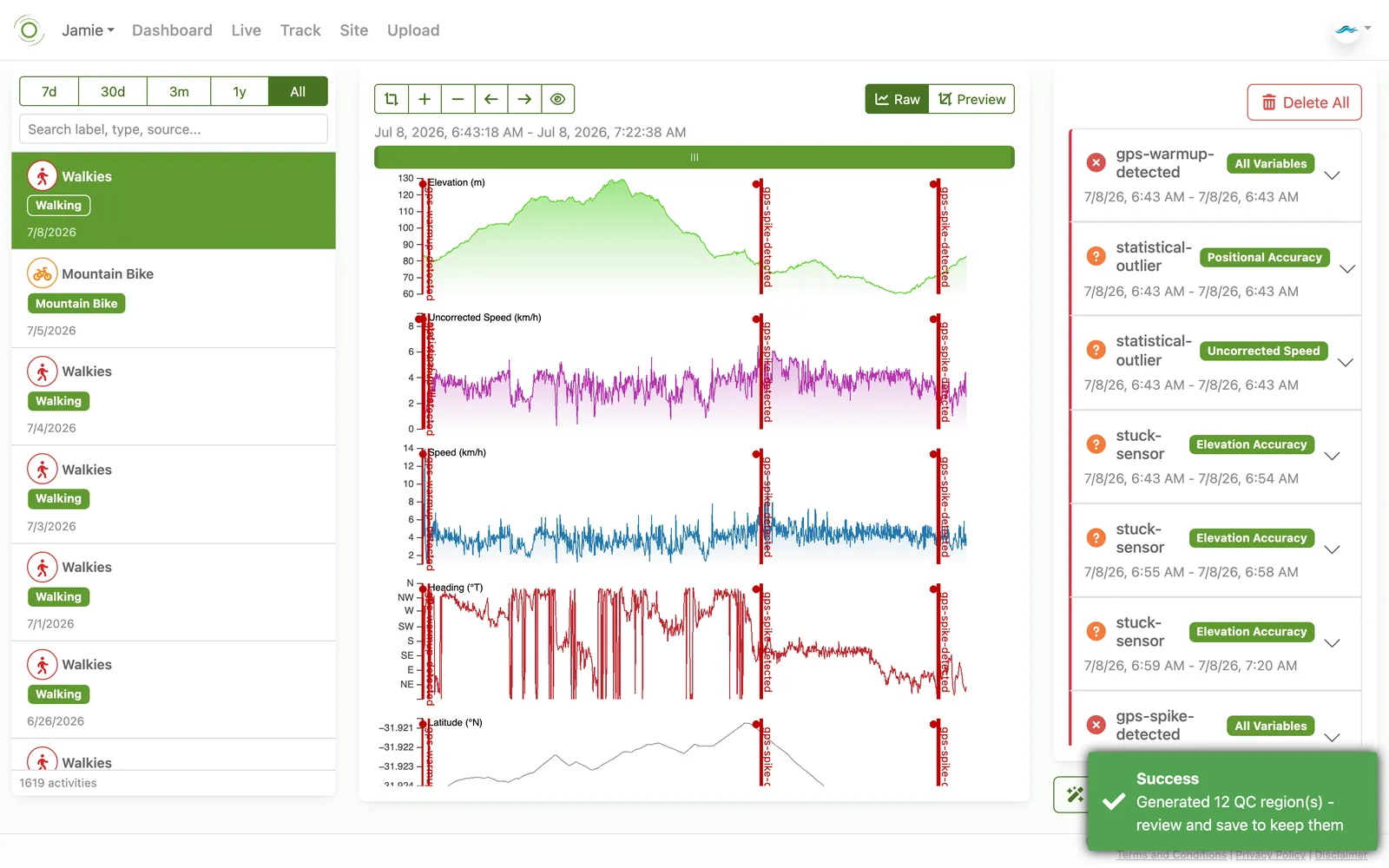
Opened from the user dropdown (see above), the Quality Control screen lets you mark stretches of a
track's data as bad or suspect, so they're excluded from statistics and exports without altering the
original recording. Select an activity, then click and drag (sweep) across the affected stretch of the
timeline to create a QC region. Give it a meaningful label describing the problem (for example, "GPS drift
near the quarry"), and choose whether it applies to every variable or only the one you are currently
looking at.
If you'd rather not sweep the timeline by hand, the Auto-QC button scans the activity for common sensor and GPS problems - a GPS warming up at the start of a track, statistical outliers, a stuck sensor holding the same value too long, or a sudden GPS spike - and generates a starting set of regions for you to review, each labelled with the issue it detected.
However a region is created, nothing happens to your data until you save it. Toggling the middle panel to Preview only shows what the data would look like with the region's variables excluded - it doesn't apply anything on its own. Review each region against the plotted variable, adjust or remove any you don't agree with, then save the ones you want to keep. Use Delete All to clear every region and start over.
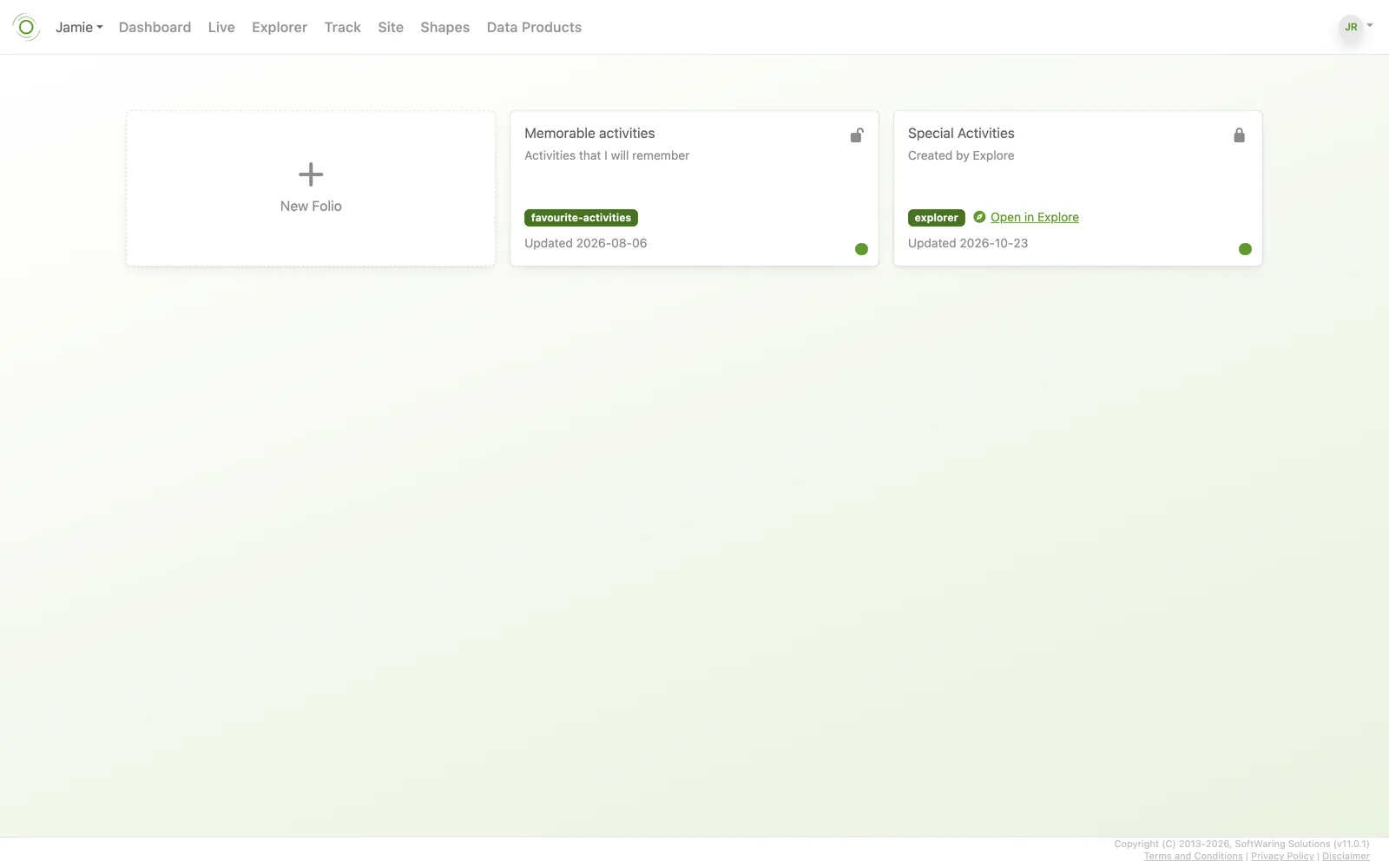
Folios
Available onFreeSharedDedicatedSelf-Hosted
A Folio is a saved set of layers from Explorer. Create one, add the Tracks, Sites, Shapes and Products you want to keep together,
and open it again later with a click. A padlock on a Folio stops it being changed by accident, and Open in Explore takes you
straight back to the map.